Overpayment On Cash Orders
| Document Version | V.1 |
|---|---|
| Document Last Updated | 8/28/2025 |
| Software Version Documented | V10.2 |
Overview
This document will cover the following enhancements for Accepting Overpayments.
General Concepts
This document will cover the following enhancements for Accepting Overpayments.
-
Accept Overpayment As Cash Credit
-
Accept Overpayment as Deposit when Tender Amount is more than Due Now: Invoiceable Amount vs Remaining Amount
-
Minimum Deposit Required
Explanation of Receive Payment Screen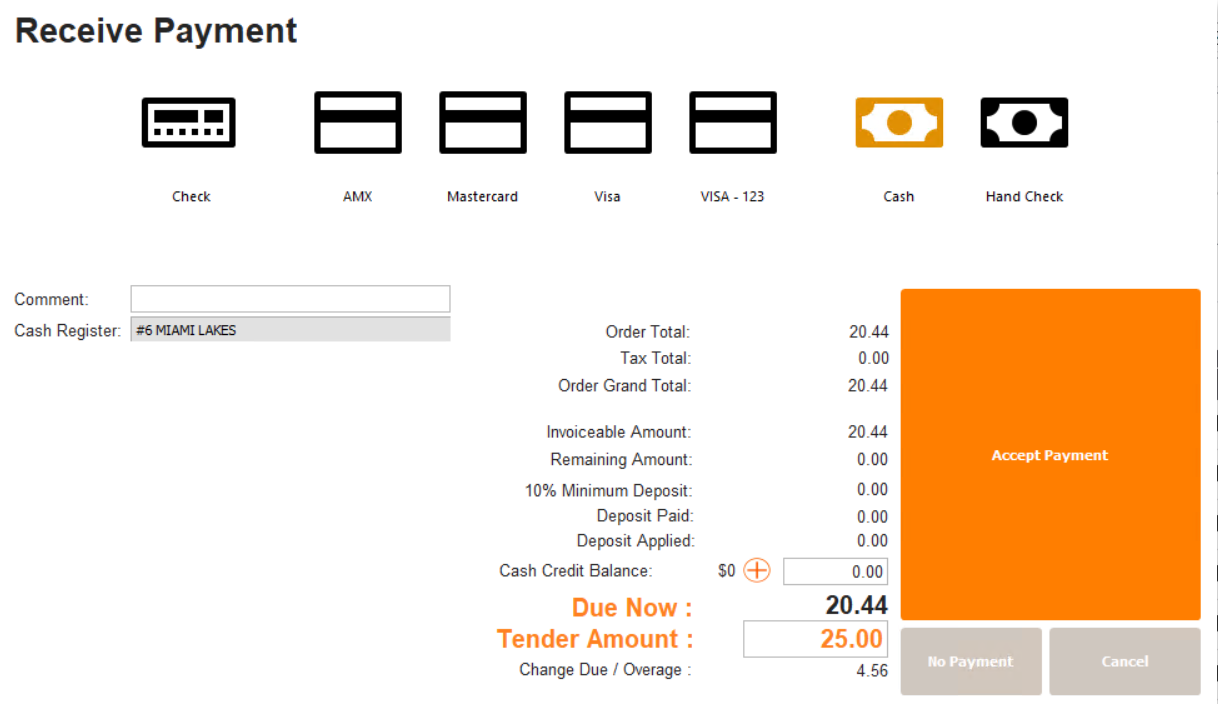
-
Order Total: This represents the subtotal for all items in the order.
-
Tax Total: The total tax applied to the order.
-
Order Grand Total: The total cost for the entire order, including tax, fees, and any applicable discounts.
-
Invoiceable Amount: The amount eligible for invoicing at present, including allocated items and items not on backorder.
-
Remaining Amount: The total value of items that are not yet Invoiceable due to being on backorder or unallocated.
-
Deposit Min: If a minimum deposit is required, this line will display the minimum deposit amount, which will be a percentage (e.g., 10%) of Remaining Amount Amount (not Invoiceable yet)
-
Cash Credit: If the customer is a Cash Customer and is Allowed Cash Credits, their Cash Credit Balance will appear here, available to apply to this order.
-
Due Now: Invoiceable Amount (including tax, discounts, fees) + if a min deposit is required - applied Cash Credit
-
Tender Amount: Will auto populate to the Due Now amount. large bold orange text, can override if the customer wishes to pay a different amount, or split payment methods.
-
Change Due/Overage: If the customer pays more than Due Now, the overage will appear here. There will be options on how to use this coverage after this screen.
Cash Credit for Cash Customers
A Cash Customer with “Allow Cash Credits" checked in their account profile, has the ability to apply a credit to their account if the customer pays extra for an order.
Enable Cash Credits on a Customer Account

-
Access Accounts Manager
-
Go to Financial Terms Tab:
-
Cash Account: Confirm that the "Cash Account" box is checked.
-
Allow Cash Credit: If the "Allow Cash Credits" checkbox is present and enabled, check this box.
- NOTE: This function is not available for Non Cash customers, since they have the function Customer Credits. This acts as a Cash version of Credit.
Security Objects
Navigate to Admin>Administrator>Security>Application Security Objects
-
Order Actions
-
Order Payments
-
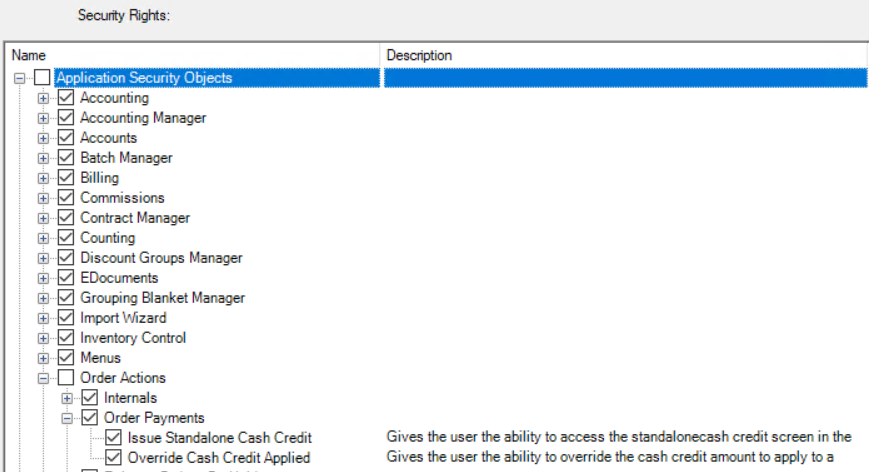
Override Cash Credit Applied allows the user to override the default amount of cash credit that is applied to a cash customer's order. This could be used in situations where a customer has a credit balance that the customer wants to apply partially or not at all to a specific order.
-
Issue Standalone Cash Credit allows the user access to a separate screen within the Order menu where the customer can issue a cash credit balance to a cash customer. This essentially creates a store credit that the customer can use for future purchases.
-
Overpayment - Cash Credit Balance Increase
-
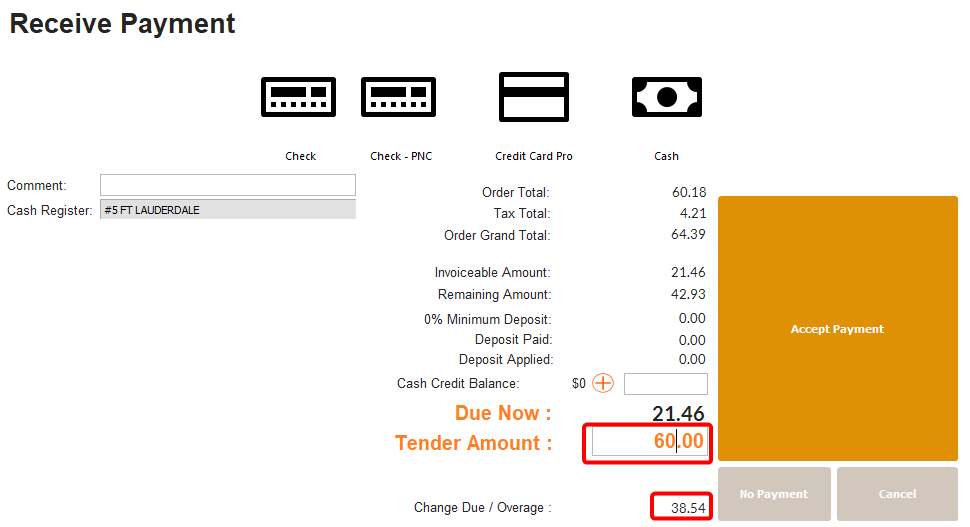
Convert the order (cash), the "Receive Payment" screen will display.
-
Select the Payment Type and change the Tender Amount to the desired payment amount.
-
The Change Due/Overage will then refresh to show the difference
-
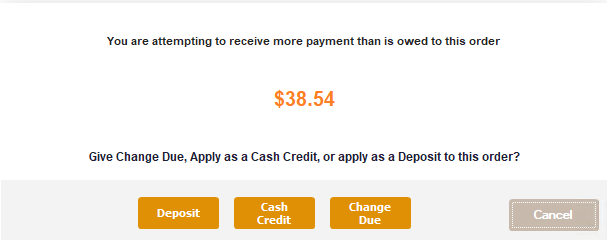
Click Accept Payment, a window appears with three options for handling the overpayment. A window appears stating: “You are attempting to receive more payment than is owed to this order”
-
Deposit: The entire order was not invoiceable yet, the customer can choose to apply the overage as a further deposit on the rest of the order.
-
Cash Credit: Creates a cash credit memo on the customer's account.
-
Change Due: If the payment type was Cash, there will be an option to just give the change back.
-
-
Choose Cash Credit and the transaction will be complete.
-
You can pull up the Account Manager and view the balance in the Credit field.
-
Also view the Credit labeled Over Payment in the Credit History tab.


Overpayment - Change Due
-
In the Receive eMoney screen, given that you choose Cash as the Payment Type
-
Override the Tender Amount to the amount the customer wants to pay
-
Change due/overage refreshes to the difference between Tender Amount and Due Now
-
Click Accept Payment
-
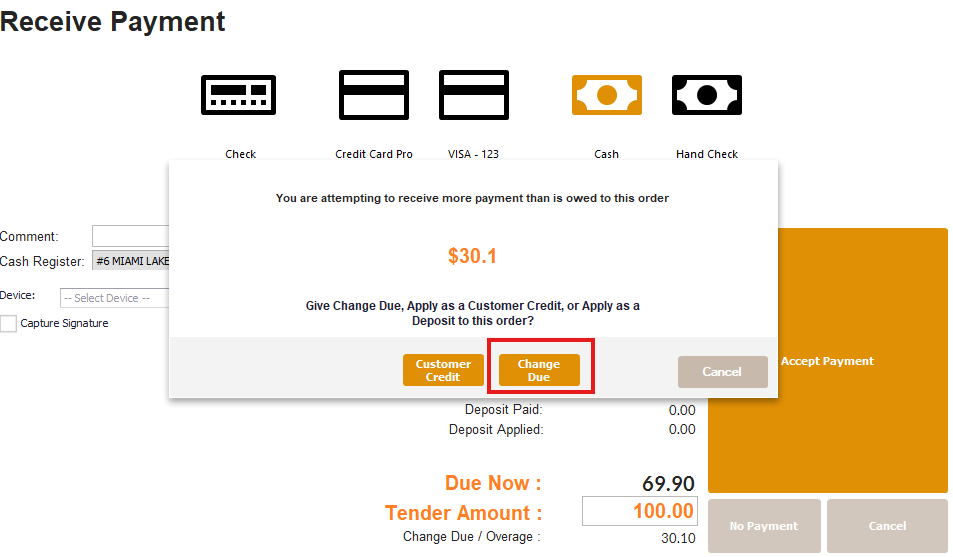
A window appears: “You are attempting to receive more payment than is owed to this order.”
-
Choose the option Change Due and give the change to the customer.
Overpayment - Deposit
-
Given that the cash order has some items that are available now and some not available (on BO)
-
Regardless of Cash Customer or Credit customer
-
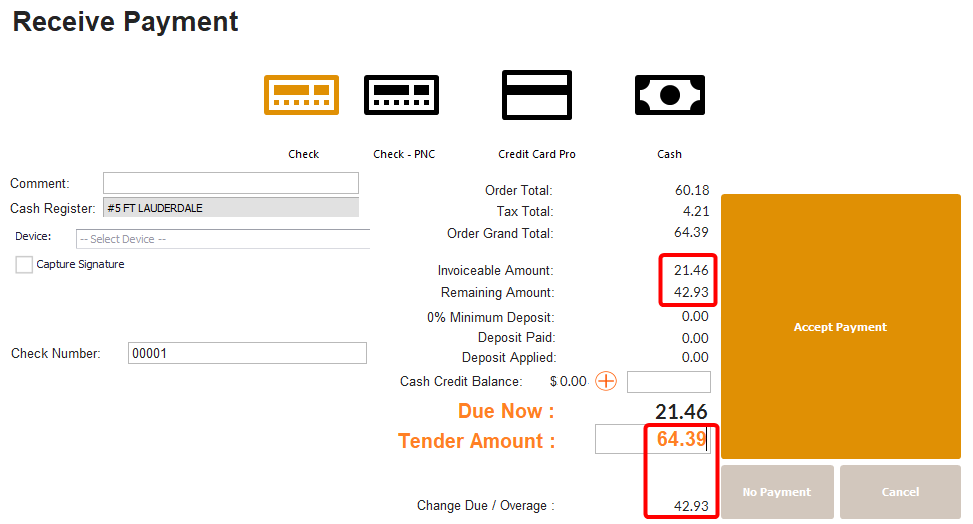
Once on the Receive Money screen, you will see the Invoiceable Amount, and a Remaining Amount
-
Choose the Payment Type
-
Override the Tender amount to greater than Due Now, for example, if the customer wants to pay for the full order now, even though it can’t all be shipped now.
-
Click Accept Payment
-
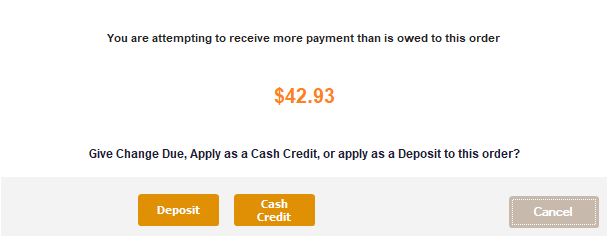
The Overage Screen appears, Click Deposit to apply the overage to the rest of the order.
-
You can view the Deposit in the Summary tab of the order.
-
Once the resto the order has been invoiced, the deposit will apply to it.
Overpay to Pay In Full - W/ Change Due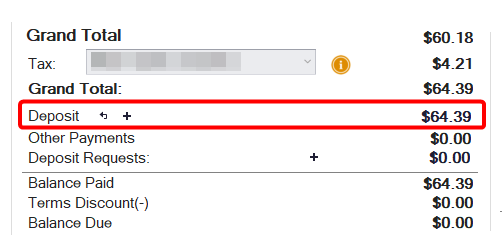
-
Given that the cash order has some items that are available now and some not available (on BO)
-
Regardless of Cash Customer or Credit customer
-
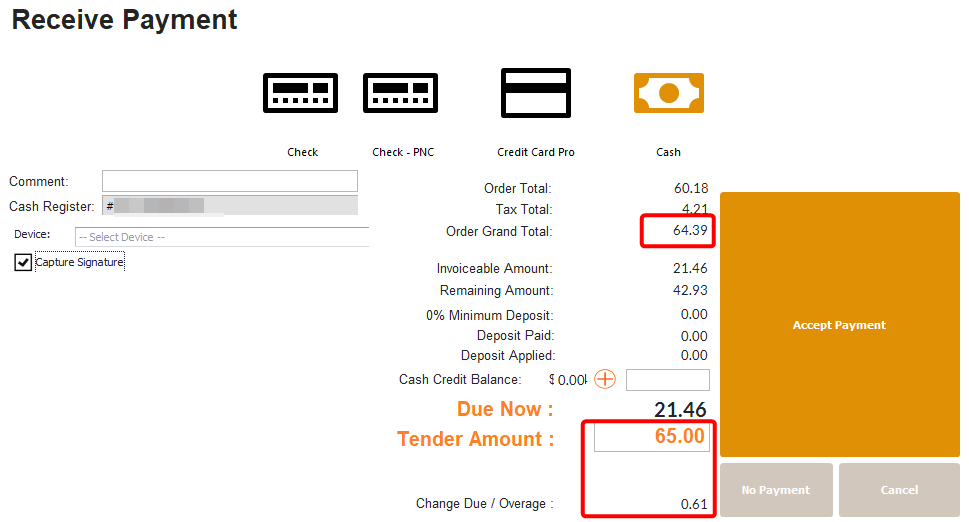
Once on the Receive Money screen, you will see the Invoiceable Amount, and a Remaining Amount
-
The customer wants to pay for the full order in cash but they don’t have exact change.
-
Override the Tender Amount to the amount the customer has
-
Notice the Overage is now the Tender minus the Grand Total (instead of Due Now).
-
Click Accept Payment
-
The Overage Screen appears, you can select Change Due
-
The Due Now Amount will be applied as a Payment to the Shipper that is released (once invoiced) the remaining amount paid will look like a deposit and will be applied accordingly as the rest of the order is invoiced.
-
ONLY when the payment type is cash, and Tender is greater than Order Grand Total, the system will see that as paying the order in full and will apply the overage as a deposit automatically, then the overage will be the change due.
Credit Customer Overpays
-
Given that the Cash Order is for a Non Cash (Credit) Customer
-
Once on the Receive Money screen
-
Choose the Payment Type
-
Override the Tender Amount to the amount the customer wants to pay
-
Change due/overage refreshes to the difference between Tender Amount and Due Now
-
Click Accept Payment
-
Options are Customer Credit and Change Due (if the payment type was Cash)
-
Click Customer Credit - A Customer Credit memo is created on their account
- This credit is like a normal Customer Credit and must be applied to invoices like normal.

Standalone Cash Credit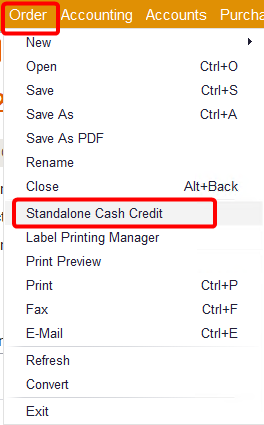
-
Given that you have the Security Object called “Issue Standalone Cash Credit”
-
In the Order menu, select Standalone Cash Credit
-
Choose the Payment Type
-
Select the Customer Name.
- Note: Only Cash Customers with “Allow Cash Credits" checked will appear here.
-
Select Customer and the job if applicable
-
Enter an amount
-
Enter a comment if desired, but not required
-
Click accept payment
-
The customers Cash Credit Balance will be updated and the additional funds will appear available to apply in their next Order.
- Or can be applied manually like a normal credit in AR.

Applying Cash Credit to a Cash Customer’s Order
-
Given that you are converting a cash order for a cash customer with a Cash Credit balance
-
Once in the Receive Money screen
-
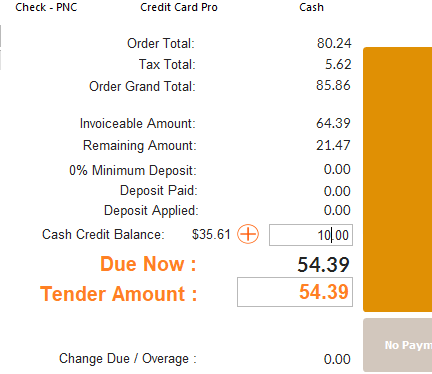
Notice the Cash Credit Balance and a Plus button
Cash Credit Covers Due Now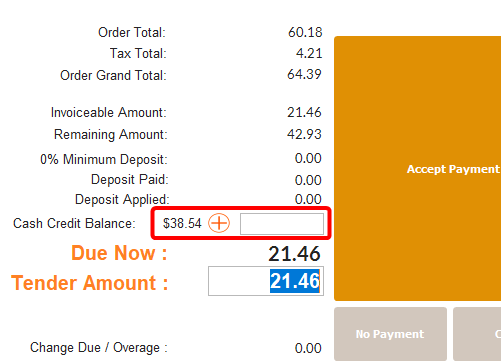
-
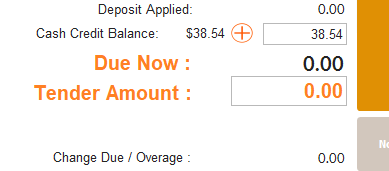
If the balance is greater than or equal to the Due Now amount
-
Click the Plus button will lower the Tender Amount to zero.
-
If the customer does not want to pay further, you can just click Accept Payment
-
And the credit will be applied to the shipper once invoiced (before it is invoiced, it will appear in Other Deposits in the Summary tab).
Cash Credit Covers Whole Order
-
If the cash credit balance is greater than or equal to the Order Grand Total
-
Clicking the Plus button will apply credit in the amount of the order total
-
Making the Due Now and Tender amounts zero and you can just click Accept payment
-
And the credit will be applied to the shipper once invoiced (before it is invoiced, it will appear in Other Deposits in the Summary tab).
Cash Credit Partially Covers Due Now 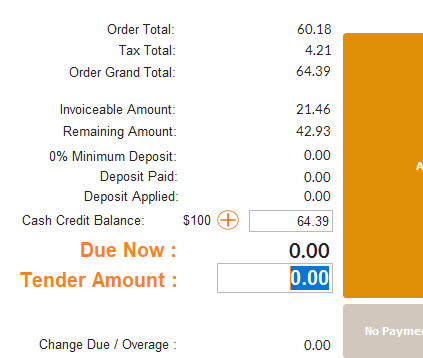
-
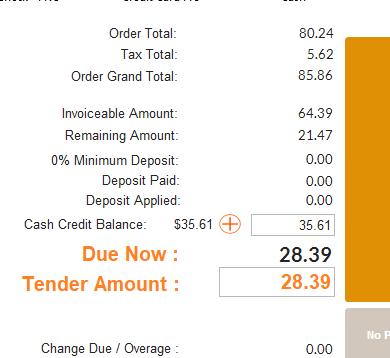
If the cash credit balance is less than Due Now
-
Clicking the Plus button will apply the full credit balance
-
Refreshing the Due Now and Tender amounts, and further payment is required.
-
And the credit will be applied to the shipper once invoiced (before it is invoiced, it will appear in Other Deposits in the Summary tab).
Override Cash Credit Applied
-
Given that you have the Security Object called Override Cash Credit Applied
-
The Cash Credit field will be enabled and you can lower the amount to apply.
-
You can still, at any point backspace out of the field if you choose not to apply the credit after all
-
But if you do not have the security, the field just can’t be overridden.